I usually disable this when I perform an installation, but ocassionally I take over a server where it is still active.
Navigate to - Start > All Programs > Micrsoft SQL Server 200x > SQL Server Error and Usage Reporting
Untick the settings as follows >
Friday, 8 August 2008
Thursday, 7 August 2008
Management Studio Speedup : Remove Splash Screen
Remove that pesky splash screen!
Simple this, change the shortcut that launches Management Studio to include the /NOSPLASH switch as shown below.
Tuesday, 5 August 2008
Reporting Services : Installing 32bit version on a 64bit server
SQL 2005's 'System Configuration Check' reported a version clash on my Windows 2008 box when trying to install Reporting Services.
" 64-bit ASP .Net is Registered. Required 32-bit ASP .Net to install Microsoft Reporting Service 2005 (32.bit). "
Sounds a bit backwards to me!
I needed to revert to 32-bit .NET on 64-bit IIS 7.0 (which is basically done by changing which DLL IIS is using)
Here's what to do...
1) from a command prompt >
C:\>cd C:\inetpub\AdminScripts
C:\inetpub\AdminScripts>cscript adsutil.vbs set w3svc/AppPools/Enable32bitAppOnWin64 1 Microsoft (R) Windows Script Host Version 5.7 Copyright (C) Microsoft Corporation. All rights reserved. Enable32bitAppOnWin64 : (BOOLEAN) True
2) Install Reporting Services (and SP2, and hotfixes... yawn...)
3) Configure Reporting Services (subject of another post, i'm sure...)
see also http://technet.microsoft.com/en-us/library/ms143293.aspx
" 64-bit ASP .Net is Registered. Required 32-bit ASP .Net to install Microsoft Reporting Service 2005 (32.bit). "
Sounds a bit backwards to me!
I needed to revert to 32-bit .NET on 64-bit IIS 7.0 (which is basically done by changing which DLL IIS is using)
Here's what to do...
1) from a command prompt >
C:\>cd C:\inetpub\AdminScripts
C:\inetpub\AdminScripts>cscript adsutil.vbs set w3svc/AppPools/Enable32bitAppOnWin64 1 Microsoft (R) Windows Script Host Version 5.7 Copyright (C) Microsoft Corporation. All rights reserved. Enable32bitAppOnWin64 : (BOOLEAN) True
2) Install Reporting Services (and SP2, and hotfixes... yawn...)
3) Configure Reporting Services (subject of another post, i'm sure...)
see also http://technet.microsoft.com/en-us/library/ms143293.aspx
Reporting Services : Installing IIS on Windows 2008
Installing Internet Information Services (IIS) on Windows 2008
This is a pre-requisite for Reporting Services >
1) Launch 'Server Manager'
2) Expand 'Roles'
3) Click 'Add Role' (over there on the right...)
4) Add ' Web Server(IIS) ' Role
When install is done >
5) Expand 'Roles'
6) Select 'Web Server (IIS) (right hand pane will change)
7) Scroll down to 'Role Services' in the pane on the right.
8) Click 'Add Role Services' and add the following roles >
> Web management tools
> IIS 6 Management Compatibility
> IIS 6 WMI Compatibility
> IIS Metabase and IIS 6 configuration compatibility
> World Wide Web Services
> Application Development Features
> ASP.NET
> ISAPI Extensions
> ISAPI Filters
> Common Http Features
> Default Document
> Directory Browsing
> HTTP Redirection
> Static Content
> Security
> Windows Authentication
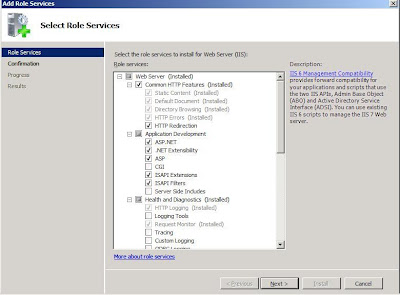
This is a pre-requisite for Reporting Services >
1) Launch 'Server Manager'
2) Expand 'Roles'
3) Click 'Add Role' (over there on the right...)
4) Add ' Web Server(IIS) ' Role
When install is done >
5) Expand 'Roles'
6) Select 'Web Server (IIS) (right hand pane will change)
7) Scroll down to 'Role Services' in the pane on the right.
8) Click 'Add Role Services' and add the following roles >
> Web management tools
> IIS 6 Management Compatibility
> IIS 6 WMI Compatibility
> IIS Metabase and IIS 6 configuration compatibility
> World Wide Web Services
> Application Development Features
> ASP.NET
> ISAPI Extensions
> ISAPI Filters
> Common Http Features
> Default Document
> Directory Browsing
> HTTP Redirection
> Static Content
> Security
> Windows Authentication
Monday, 4 August 2008
Windows Uptime
Go to a command (dos) prompt -
Type 'net statistics server'
Look for the statistics since line -
Microsoft Windows XP [Version 5.1.2600]
(C) Copyright 1985-2001 Microsoft Corp.
C:\Documents and Settings\user>net statistics server
Server Statistics for \\MYPC-123
Statistics since 7/30/2008 10:44 AM
Sessions accepted 1
Sessions timed-out 0
Sessions errored-out 0
Kilobytes sent 0
Kilobytes received 0
Mean response time (msec) 0
System errors 0
Permission violations 0
Password violations 0
Files accessed 0
Communication devices accessed 0
Print jobs spooled 0
Times buffers exhausted
Big buffers 0
Request buffers 0
The command completed successfully.
C:\Documents and Settings\user>
Link : How to find windows uptime?
Type 'net statistics server'
Look for the statistics since line -
Microsoft Windows XP [Version 5.1.2600]
(C) Copyright 1985-2001 Microsoft Corp.
C:\Documents and Settings\user>net statistics server
Server Statistics for \\MYPC-123
Statistics since 7/30/2008 10:44 AM
Sessions accepted 1
Sessions timed-out 0
Sessions errored-out 0
Kilobytes sent 0
Kilobytes received 0
Mean response time (msec) 0
System errors 0
Permission violations 0
Password violations 0
Files accessed 0
Communication devices accessed 0
Print jobs spooled 0
Times buffers exhausted
Big buffers 0
Request buffers 0
The command completed successfully.
C:\Documents and Settings\user>
Link : How to find windows uptime?
Saturday, 2 August 2008
10 Ultimate Rules for Effective System Administration
1. Keep it simple.
2. Backup regularly
3. Test your backup regularly
4. Proactive Monitoring
5. Document Everything
6. Plan and Execute it well.
7. Use Command Line more than GUI
8. Automate repetitive tasks
9. Support your users and developers
10. Keep learning and have fun.
The excellent, full post on the subject is here >
http://www.cyberciti.biz/tips/10-ultimate-rules-for-effective-system-administration.html
2. Backup regularly
3. Test your backup regularly
4. Proactive Monitoring
5. Document Everything
6. Plan and Execute it well.
7. Use Command Line more than GUI
8. Automate repetitive tasks
9. Support your users and developers
10. Keep learning and have fun.
The excellent, full post on the subject is here >
http://www.cyberciti.biz/tips/10-ultimate-rules-for-effective-system-administration.html
Subscribe to:
Posts (Atom)

