The job failed. The owner () of job import jobs | jobname does not have server access.
The message here is deceptive, and sent me down the route of checking permissions.
I knew I hadn't changed any permissions but I had to verify that a colleague hadn't either.
The job was owned at the time by a Windows account (I've since changed this).
There was an annoyingly simple solution to this problem.
Restart SQL Server Agent!
Basically, for reasons unknown (possibly the SQL VM being paused rater than restarted), the network service account that jobs were running under could no longer be verified by the SQL 2005 instance (lost contact with domain controller on restart or similar).
Date 11/05/2009 09:32:46
Log Job History (import jobs | jobname)
Step ID 0
Server SQL05-UAT
Job Name import jobs | jobname
Step Name (Job outcome)
Duration 00:00:00
Sql Severity 0
Sql Message ID 0
Operator Emailed
Operator Net sent
Operator Paged
Retries Attempted 0
Message
The job failed. The owner () of job import jobs | jobname does not have server access.
Link
http://social.msdn.microsoft.com/forums/en-US/sqltools/thread/47e7bc08-efa6-4a80-b8cd-1df92f10e7bc/
Monday, 11 May 2009

Saturday, 9 May 2009
Friday, 8 May 2009
Reporting Services 2008 : Customising Report Manager
Customising Report Manager in SQL Reporting Services 2008
Here's how to add your company logo to 'Report Manager'
1) Copy image file to >
c:\Program Files\Microsoft SQL Server\MSRS10.MSSQLSERVER\Reporting Services\ReportManager\images\companylogo.jpg
2) Edit Style Sheet at
c:\Program Files\Microsoft SQL Server\MSRS10.MSSQLSERVER\ReportingServices\ReportManager\Styles\ReportingServices.css
3) Find this code>
.msrs-uppertitle
{
font-family:Verdana;
font-size:x-small;
}
4) Change it to >
.msrs-uppertitle
{
font-family:Verdana;
font-size:x-small;
    BACKGROUND: url(http://ServerName/Reports/Images/CompanyLogo.JPG) no-repeat;
    HEIGHT: 42px;
    WIDTH: 155px;
    TEXT-INDENT: -5000px;
POSITION:absolute;
TOP: 15px;
RIGHT:330px;
}
Here's where I found out >
http://weblogs.asp.net/jgalloway/archive/2006/12/12/reporting-services-add-a-logo-to-the-report-manager.aspx
Thursday, 7 May 2009
SQL 2008 : Policy Based Management - Building and Testing a Policy
Step by step guide to build and test a policy in SQL 2008's Policy Based Management (PBM) >
1) Locate 'Policy Management' in object explorer >
 2) Right click 'Conditions' and select 'New Condition' >
 3) Fill in the wizard!
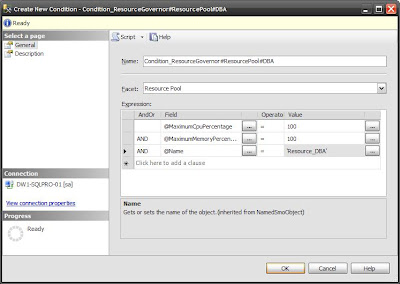
Enter a name, select a Facet from the dropdown and enter expressions to be met for the condition to be met. The conditions available in the expressions box change depending on the Facet chosen >
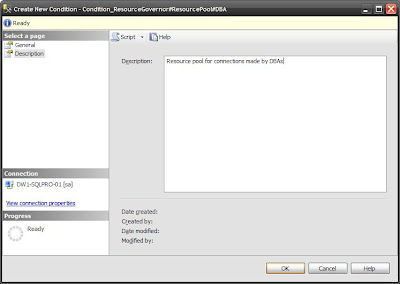
4) Enter something useful in the description so any fellow administrators know what you've done! >
5) Create a policy to accompany (and audit/enforce) the condition >
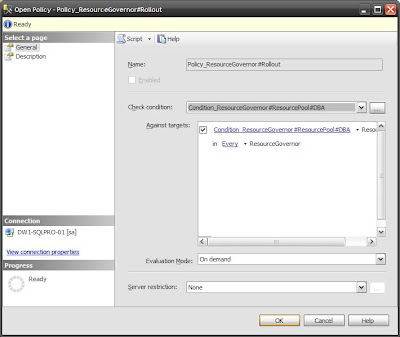
 6) Complete the New Policy wizard by
i. providing a policy name
ii. linking the policy to the condition you just defined
iii. specify the targets of the policy
iv. set the evaluation mode >
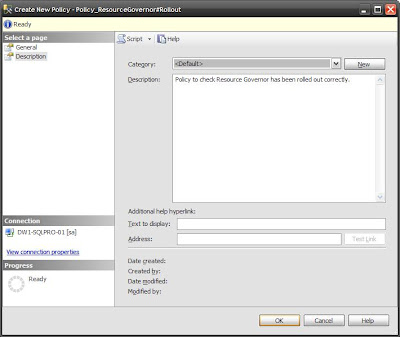
7) Again, something helpful in the description is nice >
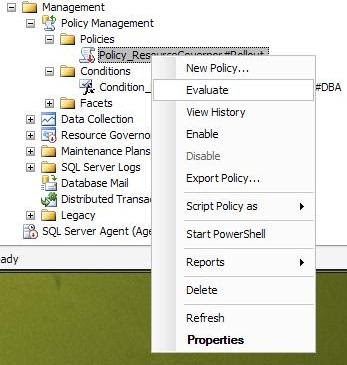
8) Test the policy using 'Evaluate' >
9) The server has passed the policy :) >
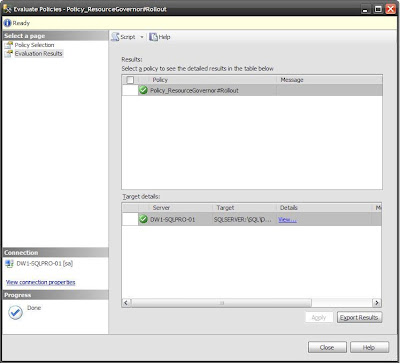
10) Clicking 'view' under the details column reveals the specifics about the tests performed >

1) Locate 'Policy Management' in object explorer >
 2) Right click 'Conditions' and select 'New Condition' >
 3) Fill in the wizard!
Enter a name, select a Facet from the dropdown and enter expressions to be met for the condition to be met. The conditions available in the expressions box change depending on the Facet chosen >

4) Enter something useful in the description so any fellow administrators know what you've done! >

5) Create a policy to accompany (and audit/enforce) the condition >
 6) Complete the New Policy wizard by
i. providing a policy name
ii. linking the policy to the condition you just defined
iii. specify the targets of the policy
iv. set the evaluation mode >

7) Again, something helpful in the description is nice >

8) Test the policy using 'Evaluate' >

9) The server has passed the policy :) >

10) Clicking 'view' under the details column reveals the specifics about the tests performed >

Wednesday, 6 May 2009
SQL 2008 : Policy Based Management - Basics
Policy Based Management enables you to enforce and audit standards across multiple SQL 2008 instances through user defined rules (policies).
3 new terms are associated with Policy Management.
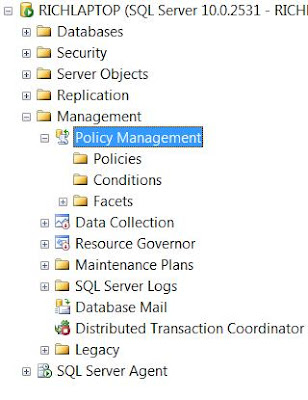
Policy Based Mamagement (PBM) is found under 'Management on a SQL 2008 instance >
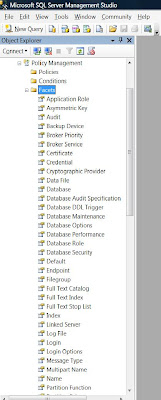
 There are currently 84 'Facets' you can define policies for -
It's easy to list them via TSQL -
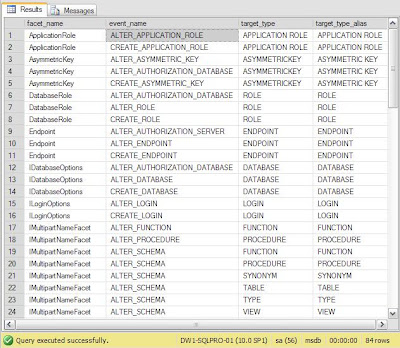
or you can list all the facets and the target types and they can be applied to >
Useful PBM Links:
Getting a list of all Facets and their properties
http://sql-articles.com/blogs/policy-based-management-pbm/
http://blogs.msdn.com/sqlpbm/
http://www.mssqltips.com/tip.asp?tip=1492
3 new terms are associated with Policy Management.
- Policy - A group of conditions to be checked/enforced
- Conditions - State of Facets (true/false).
- Facet - Manageable properties of SQL object.
Policy Based Mamagement (PBM) is found under 'Management on a SQL 2008 instance >
 There are currently 84 'Facets' you can define policies for -
It's easy to list them via TSQL -
use msdb
select name from dbo.syspolicy_management_facets
go
or you can list all the facets and the target types and they can be applied to >
use msdb
select   f.name as facet_name
  ,fe.event_name
  ,fe.target_type
  ,fe.target_type_alias
from dbo.syspolicy_management_facets f
inner join dbo.syspolicy_facet_events fe
on f.management_facet_id = fe.management_facet_id
go

Useful PBM Links:
Getting a list of all Facets and their properties
http://sql-articles.com/blogs/policy-based-management-pbm/
http://blogs.msdn.com/sqlpbm/
http://www.mssqltips.com/tip.asp?tip=1492
Tuesday, 5 May 2009
SQL 2008 : Resource Governor
Resource Governor enables dynamic (on the fly) allocation of SQL Server resources.
Resource Governor consists of 3 factors -
1. Resource Pools
A resource pool is a set configuration settings.
You can adjust 4 factors per pool -
There are 2 standard resource pools, 'internal' and 'default'.
'Internal' controls system resources used by SQL Server.
It is not affected by the configuration of other user pools.
'Default' is the first user pool, initially defined to use all available resources.
Further resource pools are user defined. The effect of adding further pools is shown below -
Eff Max% = Max% - SUM (Min% of other pools)
Shared% = Eff Max% - Min%
The same calculations apply equally to memory or cpu....
Tsql for creation of a resource pool -
Workload Groups are containers for sql server sessions.
They get applied to resource pools and can be moved freely between them.
3. Classification Functions
To allocate sql sessions to workgroups, they need to be classified.
To do this, write a Classifier Function.
This is really a SQL scaler UDF (user defined function) which looks at connection/session properties to determine session properties.
You could advocate different behaviour based on -
What is running the session - APP_NAME()
What the time is - GETDATE()
Who is executing the SQL - SUSER_SNAME()
Setting up Resource Governor to use the function -
Enable Resource Governor -
When defining the IMPORTANCE of a sesion, be aware it only applies to active workers of groups assigned to the same pool.
Not sure if all this is working?
Query Resource Governor sessions like this -
Resource Governor consists of 3 factors -
1. Resource Pools
A resource pool is a set configuration settings.
You can adjust 4 factors per pool -
- Maximum Memory
- Minimum Memory
- Maximum CPU
- Minimum CPU
There are 2 standard resource pools, 'internal' and 'default'.
'Internal' controls system resources used by SQL Server.
It is not affected by the configuration of other user pools.
'Default' is the first user pool, initially defined to use all available resources.
Further resource pools are user defined. The effect of adding further pools is shown below -
Eff Max% = Max% - SUM (Min% of other pools)
Shared% = Eff Max% - Min%
| Resource Pool | Min % | Max % | Effective Max % | Shared % |
| Internal | 0 | 100 | 100 | 100 |
| Default | 0 | 100 | 80 | 20 |
| SQL_App | 10 | 40 | 20 | 10 |
| SQL_Reports | 10 | 40 | 20 | 10 |
| SQL_Admin | 0 | 25 | 5 | 5 |
The same calculations apply equally to memory or cpu....
Tsql for creation of a resource pool -
CREATE RESOURCE POOL SQL_Reports
WITH
(
MAX_CPU_PERCENT = 25,
MAX_MEMORY_PERCENT = 50
);
GO
2. Workload Groups
Workload Groups are containers for sql server sessions.
They get applied to resource pools and can be moved freely between them.
CREATE WORKLOAD GROUP Adhoc_Reports
USING SQL_Reports
GO

CREATE WORKLOAD GROUP Application_Reports
USING SQL_Reports
GO
To put sql sessions into groups, the sessions need to be classified.
3. Classification Functions
To allocate sql sessions to workgroups, they need to be classified.
To do this, write a Classifier Function.
This is really a SQL scaler UDF (user defined function) which looks at connection/session properties to determine session properties.
You could advocate different behaviour based on -
What is running the session - APP_NAME()
What the time is - GETDATE()
Who is executing the SQL - SUSER_SNAME()
CREATE FUNCTION ResourceGovClassifier()
RETURNS SYSNAME WITH SCHEMABINDING
BEGIN
 DECLARE @classification VARCHAR(32)

 IF SUSER_SNAME() = 'ReportingUser'
    SET @classification = ‘Application_Reports’

 IF (APP_NAME() LIKE '%REPORT SERVER%')
    SET @classification = ‘Adhoc_Reports’

 RETURN @classification
END
GO
Setting up Resource Governor to use the function -
ALTER RESOURCE GOVERNOR
WITH ( CLASSIFIER_FUNCTION = dbo.ResourceGovClassifier)
GO
Enable Resource Governor -
ALTER RESOURCE GOVERNOR RECONFIGURE
GO
When defining the IMPORTANCE of a sesion, be aware it only applies to active workers of groups assigned to the same pool.
Not sure if all this is working?
Query Resource Governor sessions like this -
SELECT    session_id,
          [host_name],
          [program_name],
          nt_user_name,
          groups.name as 'ResGov_Group',
          pools.name as 'ResGov_Pool'
FROM sys.dm_exec_sessions usersessions
    INNER JOIN sys.dm_resource_governor_workload_groups groups
            ON usersessions.group_id = groups.group_id
    INNER JOIN sys.dm_resource_governor_resource_pools pools
            ON groups.pool_id = pools.pool_id
Friday, 1 May 2009
IE8: The best thing
The best thing about Internet Explorer 8?
The brunette on the post install page....

The brunette on the post install page....

Subscribe to:
Posts (Atom)